Omnisend Email Image Personalization: Complete Integration Guide with Driphue
Why Omnisend and Dynamic Images Are a Perfect Match
Omnisend is built specifically for e-commerce, with deep Shopify, WooCommerce, and BigCommerce integrations that give you rich customer data. That same data — names, purchase history, browsing behavior, location — can power dynamic personalized images that make every email feel custom-built for each subscriber.
Most Omnisend users leverage merge tags for subject line personalization but stop there. Adding personalized images to your Omnisend campaigns and automations unlocks significantly higher engagement — brands report 30-45% click-through rate improvements when visual personalization is added to their email program.
How Driphue Works with Omnisend
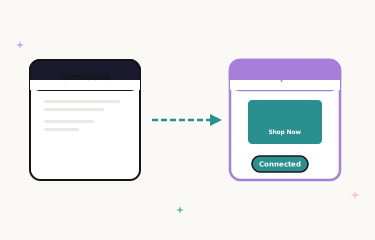
Driphue integrates with Omnisend through dynamic image URLs that incorporate Omnisend’s personalization tags. When Omnisend sends an email, it populates the tags with each subscriber’s data. When the subscriber opens the email, Driphue reads those parameters and generates a unique personalized image in real time.
The integration requires zero custom code. Omnisend’s visual email editor supports external image URLs, and Driphue’s image URLs work exactly like any other hosted image — they just happen to be dynamically generated for each recipient.
Setting Up the Integration
Step 1: Design Your Template in Driphue
Create a new image template in Driphue’s visual editor. Choose a base design that matches your brand — welcome banners, promotional heroes, cart recovery images, or product showcases. Add text overlay zones for the personalized elements: subscriber name, location, discount code, or any other data you want to visualize.
Step 2: Map Omnisend Personalization Tags
Omnisend uses double-bracket syntax for personalization tags like [[firstName]], [[city]], and [[customProperty]]. In Driphue’s integration settings, select Omnisend as your ESP and map each template field to the corresponding Omnisend tag. Driphue automatically formats the image URL with the correct tag syntax.
Step 3: Generate and Insert the Image URL
Copy the generated dynamic image URL from Driphue. In Omnisend’s email editor, add an image block and paste the URL as an external image source. The image will render with personalized content every time a subscriber opens the email.
Step 4: Test Across Workflows
Send test emails through Omnisend’s preview system. Verify that personalization renders correctly for subscribers with different data: names of varying lengths, different locations, and edge cases like missing first names. Driphue allows you to set fallback values — for example, showing "Friend" if no first name is available.
Best Omnisend Workflows for Personalized Images
Welcome Series Automation
Omnisend’s pre-built welcome series automation is the perfect place to start with image personalization. Add a personalized hero image to the first email showing the subscriber’s name in your brand style. This sets the expectation that your emails are tailored specifically for them. See our full welcome email series strategy for sequence structure.
Abandoned Cart Workflow
Omnisend automatically captures abandoned cart data including specific products. Combine this with Driphue personalized images showing the subscriber’s name plus a countdown timer for cart expiration. Our cart recovery guide covers the full 3-email sequence structure.
Browse Abandonment
Omnisend tracks which products subscribers view on your site. Trigger browse abandonment emails with personalized images referencing the subscriber by name and highlighting the category they were browsing. This moves beyond generic product recommendations to a genuinely personalized visual experience.
Post-Purchase Follow-Up
After a purchase, send a personalized thank-you image with the customer’s name. Follow up with cross-sell recommendations using dynamic product images tailored to their purchase category.
Advanced Omnisend Personalization Tips
Segment-specific templates: Create different Driphue templates for different Omnisend segments. VIP customers might see a premium gold-themed design, while new subscribers see a fresh and welcoming style. Use Omnisend’s conditional content blocks to display different image URLs based on segment membership.
Product-aware personalization: Omnisend’s rich e-commerce data means you can personalize images based on purchase categories, average order value, and browsing patterns. A subscriber who browses activewear sees fitness-themed personalized banners, while someone browsing home goods sees lifestyle imagery.
SMS and email coordination: Omnisend supports both email and SMS in the same workflow. While personalized images are email-specific, you can coordinate messaging across channels — the SMS drives urgency while the email delivers the rich personalized visual experience.
Real Results from Omnisend Users
Athletic Wear Brand — 41% Revenue Increase: Adding Driphue personalized images to their Omnisend welcome series and cart abandonment workflows increased email-attributed revenue by 41% over three months with no change in send volume or list size.
Artisan Food Company — 2.8x Automation ROI: Personalized images in Omnisend automations generated 2.8x higher ROI than generic automated emails, with particularly strong results in post-purchase cross-sell sequences.
Start Personalizing Your Omnisend Emails
Omnisend’s rich e-commerce data combined with Driphue’s dynamic image personalization creates a powerful combination for growing brands. The integration takes minutes to set up and works across all Omnisend campaign types and automation workflows. For the full picture of email image personalization strategy, explore our email personalization strategies guide. Start your free Driphue trial and transform your Omnisend emails today.
Keep reading
More from the blog
 Email Personalization
The E-commerce Guide to Email Image Personalisation: From First Image to Full Automation
11 min read Email Personalization
Email Image Personalisation Tools Compared: Driphue vs NiftyImages vs Hyperise vs OKZest
10 min read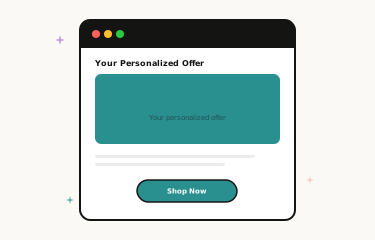 Email Personalization
Email Image Personalization: The Complete Guide for E-Commerce Brands in 2026
8 min read
Personalise every image in your emails
Turn your Klaviyo, Brevo or any-ESP campaigns into dynamic, per-subscriber images and countdown timers — no code required.