Drip Email Marketing with Personalized Images: Setup and Integration Guide
Adding Personalised Images to Drip Campaigns
Drip is built specifically for e-commerce email marketing, making it a natural fit for personalised image campaigns. With deep Shopify, WooCommerce, and BigCommerce integrations, Drip provides rich customer data that powers sophisticated personalisation. Driphue extends Drip’s native capabilities by adding dynamic image personalisation to every email — first names, loyalty tiers, purchase history segments, and any custom property Drip holds on your subscribers.
This guide covers Drip’s Liquid personalisation syntax, the email campaigns and flows where personalised images drive the most engagement, a complete step-by-step setup, and how to use Drip’s revenue attribution to measure the impact.
Drip’s Liquid Personalisation Syntax
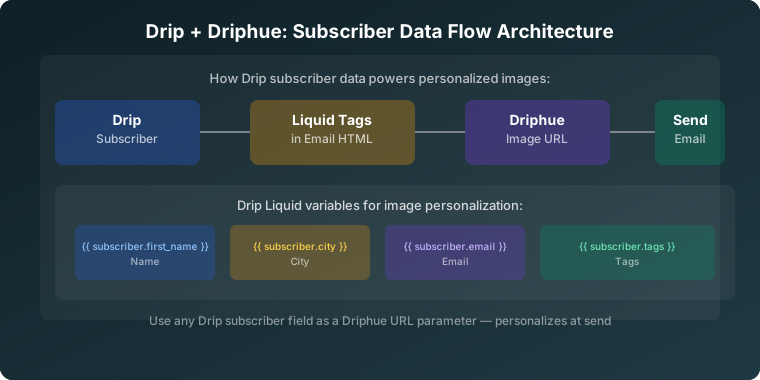
Drip uses Liquid templating for personalisation, giving you access to a rich set of subscriber and e-commerce data. The key tags for personalised image URLs are:
{{ subscriber.first_name }} — subscriber’s first name{{ subscriber.last_name }} — subscriber’s last name{{ subscriber.email }} — subscriber’s email address{{ subscriber.CUSTOM_FIELD }} — any custom field stored on the subscriber
To use these in a Driphue personalised image URL, append the Liquid tag as a query parameter:
https://img.driphue.com/[your-image-id]?name={{ subscriber.first_name }}
Drip processes Liquid tags in email content before sending, replacing the tag with each subscriber’s actual first name. Driphue receives the real name and renders it into the image in real-time.
To add a fallback for subscribers with no first name recorded, use Drip’s default filter:
{{ subscriber.first_name | default: ‘Friend’ }}
This ensures that every subscriber sees a sensible image, even if their first name isn’t stored in Drip.
Drip’s E-commerce Data for Advanced Personalisation
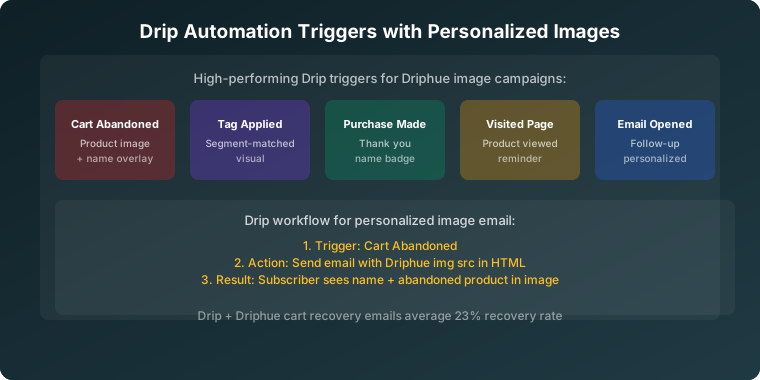
Drip’s tight integration with Shopify, WooCommerce, and BigCommerce means you have access to purchase data, browsing behaviour, and loyalty information as Liquid variables. This opens up personalisation beyond first name:
Lifetime value segments: {{ subscriber.lifetime_value }} gives you access to total spend. Use this to create high-value vs. standard subscriber image variants — VIP customers get tier-specific imagery that acknowledges their status.
Purchase category: If you tag subscribers by their primary purchase category, {{ subscriber.tags }} lets you pass category data into personalised images for category-relevant visual content.
Custom fields: Any custom field you’ve added to your Drip subscriber model is accessible via Liquid. Loyalty tier, points balance, subscription status, and preference data can all be passed into Driphue images.
For the full purchase history personalisation strategy, see our guide to purchase history email personalisation.
Campaign Types That Benefit Most from Personalised Images in Drip
Welcome Workflows
Drip’s workflow builder makes creating personalised welcome sequences straightforward. A personalised hero image in the first welcome email — with the new subscriber’s first name in a warm, on-brand design — sets the tone for the entire customer relationship. For the full strategy, see our guide to welcome email series personalisation.
Cart Abandonment Workflows
Drip’s behavioural triggers are one of its strongest features. Cart abandonment workflows fire based on real browse and cart activity, delivering personalised recovery emails at the moment of highest purchase intent. A personalised image in your Drip cart abandonment workflow — addressing the shopper by name alongside the products they left — is one of the highest-impact applications of personalised images in e-commerce email. For the full strategy, see our guide to cart abandonment emails with personalised images.
Post-Purchase Sequences
After a purchase, Drip’s post-purchase workflows can deliver personalised cross-sell and upsell images based on what the customer bought. A subscriber who bought running shoes sees a personalised image recommending running accessories. A subscriber who bought skincare sees skincare-adjacent product recommendations in a personalised visual.
For cross-sell and post-purchase strategies, see our guide to purchase history email personalisation.
Re-engagement Campaigns
Drip’s engagement scoring identifies at-risk and inactive subscribers. Personalised re-engagement images — with the subscriber’s name in a "we miss you" visual — outperform generic win-back templates. Use Drip’s engagement score as the trigger, and serve each inactive subscriber a personalised image designed to pull them back. For the full strategy, see our guide to re-engagement email personalisation.
Tag-Based Segmented Campaigns
Drip’s tagging system enables granular segmentation. Create different Driphue image templates for different tag combinations: new subscribers, repeat buyers, high-value customers, product category interests. Each segment sees a personalised image tailored to their relationship with the brand — not just their name, but their customer context. For segmentation strategies, see our guide to email list segmentation for personalisation.
Loyalty and VIP Campaigns
For Drip users running loyalty programmes, syncing loyalty tier and points data to Drip custom fields enables personalised loyalty images. A VIP subscriber sees "Sarah, your exclusive VIP offer". A standard subscriber sees "Sarah, join our VIP tier". The same personalised image URL, with different Drip custom field values driving different tier-specific imagery. For the full loyalty strategy, see our guide to loyalty programme email personalisation.
Step-by-Step Setup: Personalised Images in Drip with Driphue
Step 1: Design Your Image in Canva
Create your email image in Canva. Add a text layer where the subscriber’s first name (or other personalised data) will appear. Position the name prominently — it should be central to the image’s message, not decorative. Driphue’s Canva integration handles the import directly, so no manual export is needed.
Step 2: Import into Driphue and Configure
Import your Canva design into Driphue. Select the text layer you want to make dynamic and assign it a parameter name: name for first name personalisation, or additional parameters for more complex data (e.g., tier, points). Driphue generates your base personalised image URL.
Step 3: Build the Drip-Compatible URL
Append Drip’s Liquid tag to your Driphue URL:
https://img.driphue.com/[your-image-id]?name={{ subscriber.first_name | default: ‘Friend’ }}
For loyalty tier personalisation alongside name:
https://img.driphue.com/[your-image-id]?name={{ subscriber.first_name | default: ‘Friend’ }}&tier={{ subscriber.loyalty_tier | default: ‘Member’ }}
Step 4: Add to Your Drip Email
In Drip’s visual email builder, add an image block. Click the image block and switch to the HTML/source view to edit the src attribute directly. Paste your personalised Driphue URL. Drip processes Liquid tags in email HTML before sending — the personalisation will render correctly when the workflow fires.
For HTML email templates, embed the image directly:
<img src="https://img.driphue.com/[your-image-id]?name={{ subscriber.first_name | default: ‘Friend’ }}" width="600" alt="Personalised for {{ subscriber.first_name | default: ‘you’ }}"/>
Step 5: Test with Subscriber Preview
Use Drip’s subscriber preview feature to test the email with real subscriber data. Select a subscriber with a first name recorded and verify the personalised image renders correctly. Also test with a subscriber with no first name to confirm the fallback displays.
Measuring Personalised Image Performance in Drip
Drip’s built-in revenue attribution is one of its strongest differentiators as an e-commerce ESP. Use it to measure the revenue impact of personalised images directly: compare email-attributed revenue for workflows with personalised images against previous versions without, or run A/B tests within workflows to isolate the personalisation lift.
The most informative metric in Drip for personalised image campaigns is revenue per subscriber per workflow — this captures both the CTR improvement and the conversion rate improvement in a single figure that translates directly to business impact.
Driphue’s view analytics provide image render counts, giving you a platform-level measure of how many subscribers rendered their personalised image independent of Drip’s tracking. For a systematic approach to calculating full programme ROI, see our guide to measuring email personalisation ROI.
Start Personalising Your Drip Campaigns
Drip’s e-commerce focus combined with Driphue’s personalised images creates a powerful combination for any Shopify or WooCommerce brand. Design your first personalised image in Canva, import to Driphue, append the Drip Liquid tag, and deploy to your welcome workflow or cart abandonment flow.
For other ESP integration guides, see our setup guides for Klaviyo, ConvertKit, AWeber, and GetResponse. For the complete overview, see our complete guide to email image personalisation for e-commerce.
Keep reading
More from the blog
 Email Personalization
The E-commerce Guide to Email Image Personalisation: From First Image to Full Automation
11 min read Email Personalization
Email Image Personalisation Tools Compared: Driphue vs NiftyImages vs Hyperise vs OKZest
10 min read Email Personalization
Email Image Personalization: The Complete Guide for E-Commerce Brands in 2026
8 min read
Personalise every image in your emails
Turn your Klaviyo, Brevo or any-ESP campaigns into dynamic, per-subscriber images and countdown timers — no code required.