Dark Mode Email Design for Personalized Images: Best Practices 2026
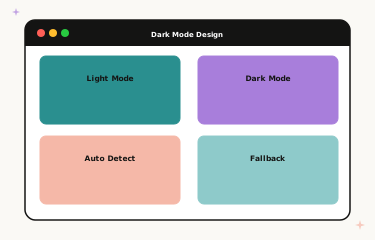
Why Dark Mode Matters for Email Personalization
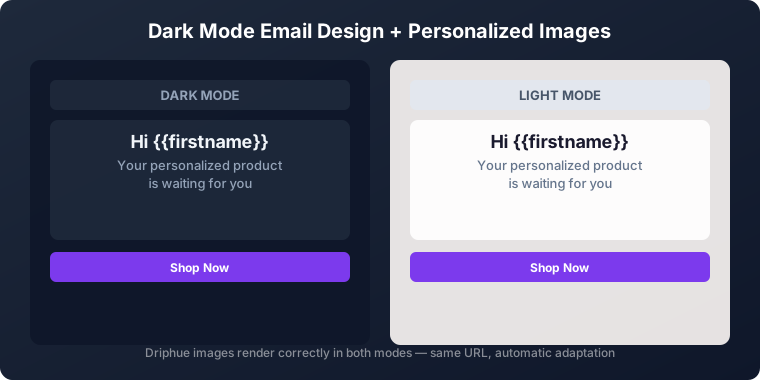
Over 80% of email users have dark mode enabled on at least one device. When your personalised email images are not optimised for dark mode, they can look broken, washed out, or jarring against the dark background. A beautiful personalised banner that shows "Welcome, Sarah" in elegant typography on a crisp white background looks stunning in light mode and appears as a blinding white rectangle floating against a dark email body in dark mode.
Dark mode optimisation is not optional in 2026 — it is a baseline quality standard for professional email marketing. The good news is that dark mode-friendly personalised image design follows a clear set of principles that, once implemented, apply automatically to every subscriber who opens your emails in dark mode. This guide covers every dimension of the challenge: how dark mode affects personalised images, the design strategies that resolve each issue, testing methodology across clients, and the results brands achieve after optimising.
How Dark Mode Affects Personalised Images
Background Colour Inversion
Most email clients invert background colours in dark mode as part of their automatic dark mode rendering. White backgrounds become near-black. Light greys become dark greys. If your personalised image uses a white or very light background — which is common for designs imported from Canva using default white canvas settings — the image will appear as a bright rectangle against the dark email body. The contrast is not just aesthetically jarring; it actively undermines the polished, premium impression that personalised imagery is intended to create.
The inversion applies to the HTML email background and to image backgrounds that email clients can parse as CSS. However, the pixels inside a PNG or JPEG image file are not affected by email client colour inversion — the image is rendered as-is from the file. This means a white background inside your personalised image file stays white in dark mode, creating the floating rectangle effect, while the surrounding email HTML background turns dark around it.
Text Readability in the Email Context
Personalised text rendered inside images is not affected by email client dark mode inversions because it is part of the image pixel data, not HTML text that can be recoloured. However, the surrounding email body text will change colour in dark mode — dark text on white in light mode becomes light text on dark in dark mode. This can create visual inconsistency between the colour temperature and weight of text inside your personalised image and the text that surrounds it in the email body, which affects the overall visual coherence even when the image itself is readable.
Transparency and PNG Alpha Channel Issues
PNG images with transparent backgrounds can behave unpredictably in dark mode because different email clients fill transparent areas differently. Some clients fill transparent PNG areas with the dark background colour, which can dramatically change the visual appearance of personalised images that were designed to blend with a white email background. Logos, product cutouts, and personalised text overlays using transparent PNGs are particularly vulnerable to this problem. The safe solution is to use opaque background colours rather than transparency in any personalised image that will be deployed in email.
Design Strategies for Dark Mode-Ready Personalised Images
Strategy 1: Use Brand-Coloured Opaque Backgrounds
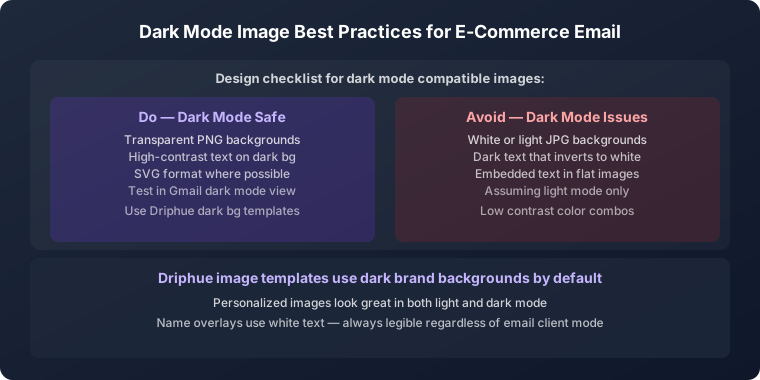
The most reliable strategy for personalised images is to use your brand’s own colour palette as the image background, rather than white or transparent. Deep navy, rich charcoal, warm dark teal, forest green, or any medium-to-dark colour from your brand palette looks intentional and premium on both light and dark email backgrounds. White personalised name text on a dark brand background is visually striking in light mode and equally strong in dark mode, with no floating rectangle effect because the image background has its own defined colour rather than relying on the email background to provide context.
This approach has an additional benefit: it makes the personalised image visually self-contained and distinctive regardless of the email client rendering context, which creates a more consistent brand impression across the full diversity of devices and clients your subscribers use.
Strategy 2: Dark-Friendly Colour Palettes for Personalised Text
Choose text colours for personalised name overlays that maintain strong contrast in both rendering modes. White text ('#FFFFFF' or near-white) works beautifully on dark and medium-dark backgrounds in any mode. High-contrast cream or warm white works well against deeper brand colours. Avoid using light grey personalised text — it may appear subtle and elegant in light mode but can become nearly invisible on some dark mode implementations that alter surrounding rendering contrast.
For personalised text that appears on lighter brand backgrounds, ensure the dark text colour maintains the WCAG AA 4.5:1 contrast ratio. Bold or semi-bold font weights (600–700) add legibility margin on any background and reduce the minimum contrast ratio required to remain readable.
Strategy 3: Rounded Corners and Defined Edges
Adding rounded corners (8–16px border-radius) or a subtle border to personalised images creates a visually defined edge that prevents the floating rectangle problem even on images that use lighter backgrounds. The defined edge signals intentional containment rather than a white background bleeding into an equally-white email body or contrasting harshly against a dark one. This is a lightweight strategy that can be applied to existing templates without redesigning the background treatment.
Strategy 4: Separate Light and Dark Templates
For brands that want maximum control over both rendering experiences, creating two versions of each personalised image template — one optimised for light mode, one for dark mode — and serving them using CSS media query targeting is the most thorough approach. The @media (prefers-color-scheme: dark) query in email CSS allows the email to swap the image src between light and dark versions based on the subscriber’s device preference. This requires slightly more template management overhead but gives complete control over both experiences.
Testing Dark Mode Across Email Clients
Dark mode implementation varies significantly across email clients, and the same personalised image can render differently in each. The major clients to test are Apple Mail on iOS and macOS, Gmail on mobile app and web, Outlook on desktop, web app, and mobile, and Yahoo Mail. Each implements dark mode colour processing differently, and each affects personalised images in subtly different ways.
Apple Mail applies aggressive colour inversion and can invert colours inside images in some rendering modes. Gmail on mobile applies a moderate dark mode transformation but generally leaves image file pixels intact. Outlook on Windows has historically handled dark mode inconsistently across versions. Testing across at least these four clients in both light and dark mode is the minimum responsible pre-launch process for any email using personalised images.
Use email testing platforms (Litmus, Email on Acid) to test dark mode rendering across multiple clients simultaneously. Driphue’s template preview includes dark mode simulation to catch the most common rendering issues before you deploy. For the complete cross-client testing methodology, see our email client compatibility guide.
Typography and Font Weight for Dark Mode Personalised Text
Personalised name text is the most important element to optimise for dark mode readability, because it is the element that makes the image feel individually addressed. White or near-white personalised text on a dark brand background renders with strong contrast in all dark mode implementations and all light mode implementations simultaneously. Bold or semi-bold weights (600–700) ensure the name is visually prominent at mobile scale without requiring the viewer to read carefully — the personalisation should be immediately obvious at a glance.
Avoid decorative or thin-weight fonts for personalised name overlays in email images. These can look elegant at desktop size but become unreadable at mobile scale, and they lose further legibility in dark mode implementations that alter surrounding rendering contrast.
Alt Text and Fallback Content
Some email clients in dark mode may reduce image rendering or block external images entirely. Ensure your personalised images have personalised alt text that maintains the individual messaging even when the image does not load. "Sarah, Your Exclusive Offer Awaits" as personalised alt text (using your ESP’s merge tags in the alt attribute) preserves the personalised experience for subscribers who view the email without images. For the complete accessibility guide, see our email accessibility guide.
Real Results from Dark Mode Optimisation
Fashion brand — 18% fewer unsubscribes from mobile: After optimising personalised images for dark mode using brand-coloured opaque backgrounds, mobile unsubscribe rates dropped 18%, suggesting that subscribers were previously experiencing visual friction from poor dark mode rendering that contributed to list fatigue.
SaaS company — 23% higher mobile CTR: Dark mode-optimised personalised images increased mobile click-through rates by 23%, primarily driven by improvement among iOS users with dark mode permanently enabled. The rendering quality improvement reduced the visual credibility gap between desktop and mobile experiences.
Build Dark Mode Into Your Template Workflow
The most efficient approach to dark mode-ready personalised images is to build the design principles into your template creation process from the start rather than retrofitting them after deployment. Every new Driphue template created with an opaque brand-coloured background, white or high-contrast personalised text, and rounded edges is automatically dark mode-compatible without any additional work at send time.
For the complete personalisation strategy that covers every flow and campaign type, see our email personalisation guide. For mobile-specific rendering guidance, see our mobile optimisation guide. Start your free Driphue trial and build personalised email images that look exceptional in every mode, on every device.
Keep reading
More from the blog
 Email Personalization
The E-commerce Guide to Email Image Personalisation: From First Image to Full Automation
11 min read Email Personalization
Email Image Personalisation Tools Compared: Driphue vs NiftyImages vs Hyperise vs OKZest
10 min read Email Personalization
Email Image Personalization: The Complete Guide for E-Commerce Brands in 2026
8 min read
Personalise every image in your emails
Turn your Klaviyo, Brevo or any-ESP campaigns into dynamic, per-subscriber images and countdown timers — no code required.